



Connect Wireless Android Auto To Your Acura
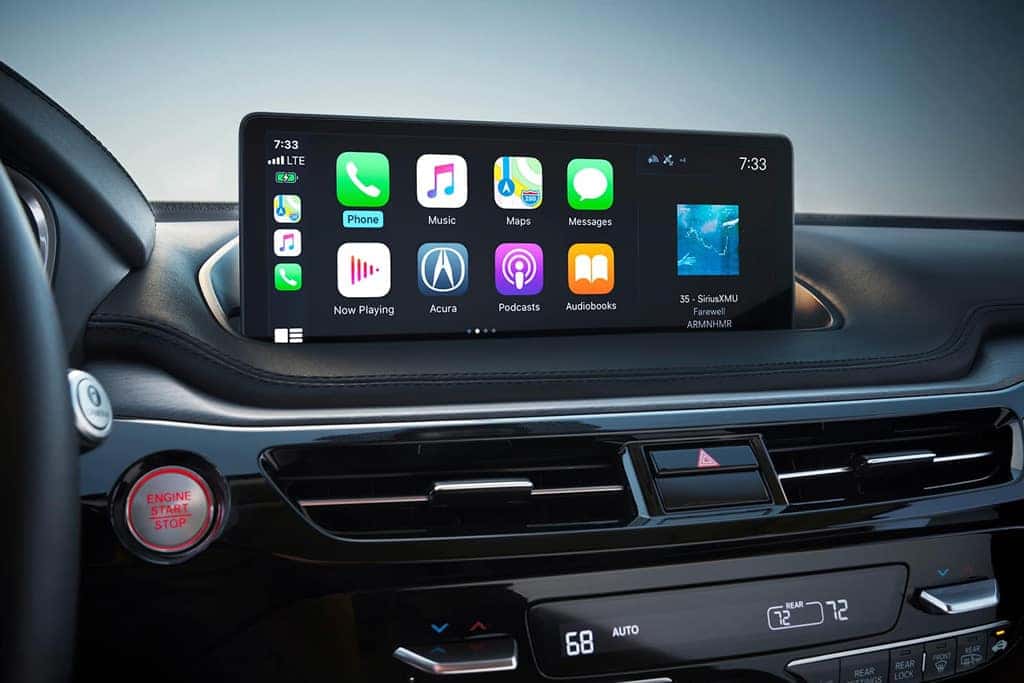
Are you looking to connect Android Auto wirelessly to your Acura? You’re in the right place! We’ve created a simple, step-by-step guide to help you through the process.
Step 1: Check Your Phone Settings
Before you begin, ensure your phone settings are ready for the connection. Navigate to the “Connected Devices” section on your phone to prepare it for pairing with your Acura’s infotainment system.
Step 2: Access Infotainment Screen Settings
Next, head over to your Acura’s infotainment screen. Access the settings menu and find the connections menu. From there, select “Android Auto” and proceed to connect a new device.
Step 3: Pair Your Phone
Once you’ve selected “Connect New Device,” your phone should be ready to pair with your Acura vehicle. Make sure you have the Android Auto app downloaded on your phone to make this process smooth and straightforward.
Step 4: Enable Android Auto
After pairing is complete, select Android Auto on your car screen and enable it. You might need to grant access to certain features on your phone, such as messages.
Step 5: Enjoy Wireless Connectivity
With the setup complete, you can now enjoy the convenience of wireless Android Auto connectivity in your Acura. Access and enjoy a variety of apps, including Spotify, Google Maps, iHeartRadio, podcast platforms, and more.
Following these easy steps will allow you to effortlessly connect your Android device to your Acura car using Android Auto. For a visual guide, don’t forget to watch our tutorial video that demonstrates the setup process.
If you have any further questions or need additional assistance, feel free to reach out to us at Speedcraft Acura. We’re here to ensure you have a smooth and enjoyable experience while setting up Android Auto in your Acura. Until next time, enjoy the ride with the future of in-car connectivity!
0 comment(s) so far on Connect Wireless Android Auto To Your Acura